
Please note: WooCommerce is an external tool that we use. For questions about how WooCommerce itself works, we refer you to the official WooCommerce documentation.
Credentials
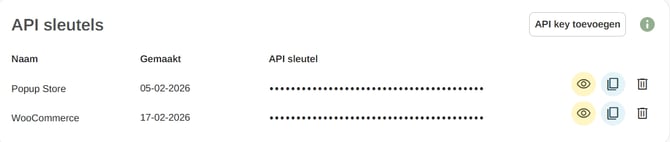
You need to add an API key. You can create this in the settings of your Print.com account. Go to https://app.print.com/account and scroll all the way down to the API keys section. Click Add API key and give the key a name. Copy the API key and return to the Print.com WooCommerce plugin. Paste the key into the designated field.
If it is not already set, make sure the environment is set to Live.

Please note: If your company also has a test account, make sure you create the API key in your live account.
Product
Here you configure the product connection with Print.com. You have the option to enable Use preset copies. When you select this option, the predefined number of copies will be used. Customers will not be able to choose the quantity themselves.

Final steps
Once everything is configured, click Save settings. Then click Verify next to the API key to check the connection. After a successful verification, the plugin will be connected to your Print.com account.