
Please note: Shopify is an external e-commerce platform that we integrate with. For questions about how Shopify itself works, we refer you to the official Shopify documentation.
1. Print.com catalog
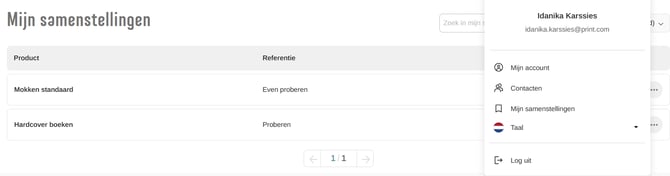
In the Print.com web app, go to Catalog. Choose the desired category and select the item you want to use for your product. Configure the product as needed, then go to My configurations to name and save your setup.
2. Link new product
In Shopify, open the Print.com: Print on Demand app and go to Products. Click Link new product.

3. Shopify product
Enter your product category and select the variant for which you created a preset.

4. Print.com preset
Select the preset you created earlier.

5. Certified Print PDF
Upload the final, print ready design file that will be used for production.

6. Activate product
Check the box to activate the connection between Shopify and your Print.com product.

You can now find the product under Products.
