
Go to Products in the menu on the left-hand side and add your first product by clicking Add to open the Pop-up Store catalogue. Select the products you want to add and click Add again to include them in your Pop-up Store.
Product overview
Once the products have been added, you will see them in the overview. Here, you can see the default margin (%), product category, and whether the product is active.
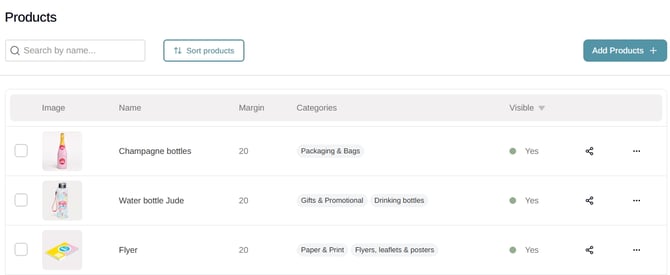
To edit a product, click on the product title in the overview. You will then enter the editing screen for that specific product. In this screen you can:
-
Adjust the product-specific price margin (%)
-
Change the product title
-
Edit the description
-
Manage the product images or upload your own images
After making changes, do not forget to click Save changes. Then return to the product overview via Products in the menu on the left-hand side.
Please note: If you set a margin at product level, it will override the general margin for that specific product.
Publishing products in your Pop-up Store
By default, the products you add to your Pop-up Store are not immediately visible to visitors on your website. You need to publish them by making them visible.
To do this, select the products you want to publish, go to Actions in the top right corner, and click Show selected. This will update the product overview and make the products visible in your Pop-up Store.