
Printing exactly the right colour can be crucial to your design. In this article, you can read what you need to consider to achieve this.
Converting colours to CMYK
When ordering products with full-colour print, it is important that you convert your design to CMYK yourself. Does your file still contain PMS or RGB colours? If so, despite the automatic conversion that follows as standard, this can result in colour differences. Therefore, always convert colours manually before you upload your file.
CMYK black
To print solid black for large areas or other large shapes, use the following CMYK combination: Cyan 50%, Magenta 40%, Yellow 40%, and Black (K) 100%. This will create a deep black colour. However, do not use this CMYK combination for body text or headlines. Always create those using 100% black (K) to keep the text sharp.
For small-format printing:
If your design includes white text or lines on a solid black background, be aware that the CMYK black combination can affect the white text, especially with small fonts and light typefaces. The same principle applies as with black text or lines created in CMYK – the text may become less sharp, and other printing colours may become visible at the edges. To reduce this risk, set the black to 100% (K) and 40% Cyan, and avoid using small fonts and light typefaces.
PMS colours
The Pantone Matching System (PMS) consists of more than 1100 colours with a unique code, which can all be found on the well-known Pantone colour chart. Thanks to this universal colour coding, printers worldwide can produce exactly the same colour. PMS colours are mainly used for specific colour shades which must always be the same. Very handy for house style printing, for example! However, do not supply spot colours with their own designations such as "Brick red", "Grass green", "Brand name purple". Spot colours with these designations cannot be mixed as PMS colours at our product location.
Colour differences between materials
What the colours of your design look like in real life depends on the chosen material. That's right; the ink used in digital and offset printing is transparent. The substrate therefore influences the final colour. In addition, the reflection of light influences our perception of a colour. For example, colours on an uncoated material such as 'hvo offset' can differ considerably from a coated material type such as 'satin mc'.
When your design is used on different products, for example in corporate identity, we recommend that you use the same material as much as possible. In addition, you can order our lookbooks to get a better idea of the colour rendering on different materials.
Overprint
Printing different layers of colour over each other is called overprinting. In the example below you can see that the cyan circle is mixed with the yellow and magenta triangles.
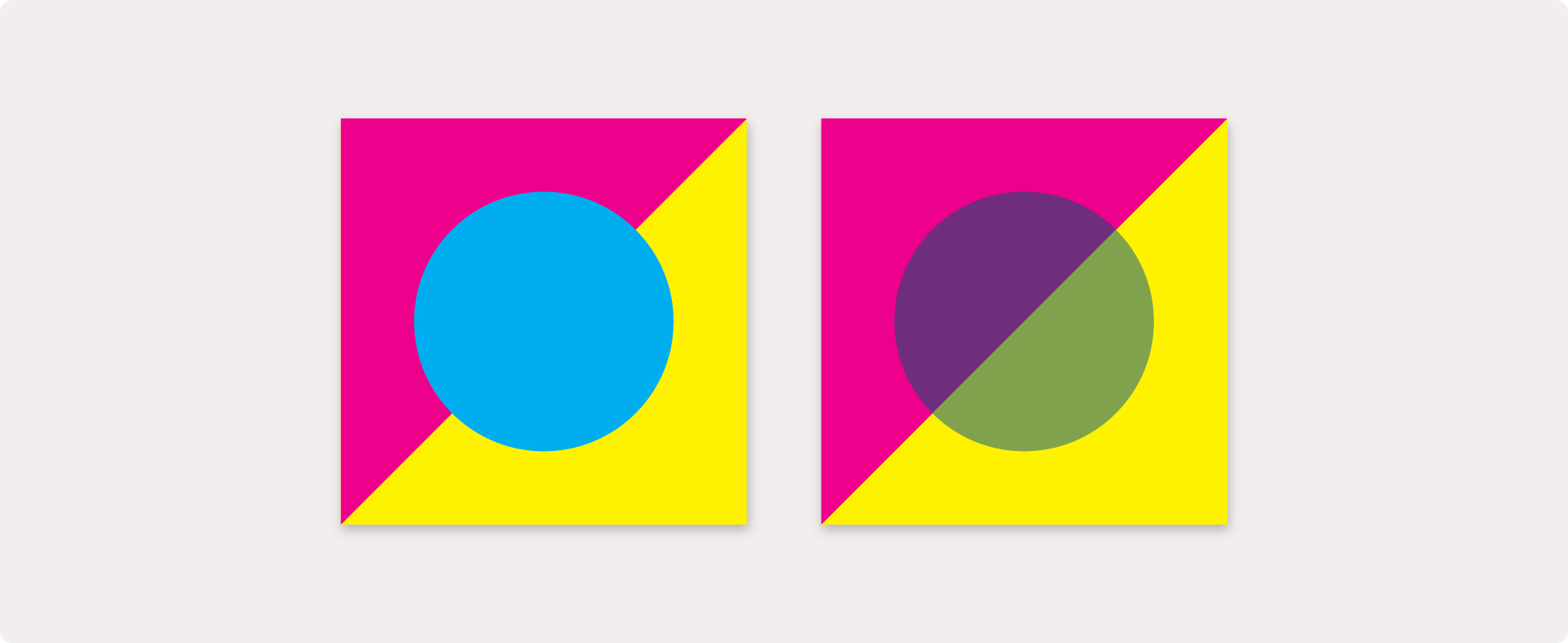 Without overprint vs. With overprint
Many design programs provide a standard preview without overprint. This makes it look as if the circle is printed in cyan (left), but the printing press prints with overprint (right). Therefore, please check whether your software is configured correctly.
Colour profiles
If you opt for a full colour print, we advise you to save the design with a colour profile: Coated FOGRA39 (ISO 12647-2:2004) for coated paper or Uncoated FOGRA29 (ISO 12647-2:2004) for uncoated paper. Depending on the chosen material and finishing such as a laminate, the colour may deviate slightly from your wishes. Each material absorbs the ink in a different way. A colour profile ensures an end result that is as consistent as possible.
Good to know
- Make sure that the ink coverage does not exceed 280%
- White in your full-colour design? Then never put this on overprint. Because white is not a print colour here, it will actually only become visible by knocking it out from the background.
Frequently Asked Questions
Can I print PMS colours in CMYK?
PMS colours can be printed in CMYK after automatic conversion. Please note that PMS colours are specifically premixed colours, and the conversion can therefore be very unpredictable and will not exactly match the colour from the PANTONE PMS range.
How do I adjust overprint?
Sometimes it is useful to use the overprint setting. You can find it here:
- Adobe InDesign: Window > Output > Characteristics
- Adobe Illustrator: Window > Properties
Here you can specify which objects you want to overprint and what (line, fill, etc.).