---
title: Step 5. How to add the Pop-up Store to your own website
description: This article explains how to add the Pop-up Store to your website using the embed code snippet.
---
[Skip to content](https://knowledge.print.com/helpcenter/step-5.-how-to-add-the-pop-up-store-to-your-own-website#main-content)
- [English](https://knowledge.print.com/helpcenter/step-5.-how-to-add-the-pop-up-store-to-your-own-website)
- [Deutsch](https://knowledge.print.com/de/helpcenter/step-5.-how-to-add-the-pop-up-store-to-your-own-website)
- [Français - France](https://knowledge.print.com/fr-fr/helpcenter/step-5.-how-to-add-the-pop-up-store-to-your-own-website)
- [Nederlands](https://knowledge.print.com/nl/helpcenter/step-5.-how-to-add-the-pop-up-store-to-your-own-website)
- [Nederlands - België](https://knowledge.print.com/helpcenter-nl-be/step-5.-how-to-add-the-pop-up-store-to-your-own-website)
English
Show submenu for translations
[More support](https://knowledge.print.com/helpcenter/kb-tickets/new?hsLang=en)
[](https://knowledge.print.com/migration/nl/helpcenter?hsLang=en)
-
Open main navigation
Close main navigation
-
- - [English](https://knowledge.print.com/helpcenter/step-5.-how-to-add-the-pop-up-store-to-your-own-website)
- [Deutsch](https://knowledge.print.com/de/helpcenter/step-5.-how-to-add-the-pop-up-store-to-your-own-website)
- [Français - France](https://knowledge.print.com/fr-fr/helpcenter/step-5.-how-to-add-the-pop-up-store-to-your-own-website)
- [Nederlands](https://knowledge.print.com/nl/helpcenter/step-5.-how-to-add-the-pop-up-store-to-your-own-website)
- [Nederlands - België](https://knowledge.print.com/helpcenter-nl-be/step-5.-how-to-add-the-pop-up-store-to-your-own-website)
English
Show submenu for translations
- [More support](https://knowledge.print.com/helpcenter/kb-tickets/new)
- [Back to the webapp](https://app.print.com/)
[Back to the webapp](https://app.print.com/)
How can we help you?
- There are no suggestions because the search field is empty.
1. [Print.com Help Center](https://knowledge.print.com/helpcenter?hsLang=en)
2. [Solutions](https://knowledge.print.com/helpcenter/solutions?hsLang=en)
3. [Pop-up Store](https://knowledge.print.com/helpcenter/solutions?hsLang=en#pop-up-store)
# Step 5. How to add the Pop-up Store to your own website
## This article explains how to add the Pop-up Store to your website using the embed code snippet.
To add the Pop-up Store to your website, go to *Installation* in the menu on the left-hand side. You will find two things there:
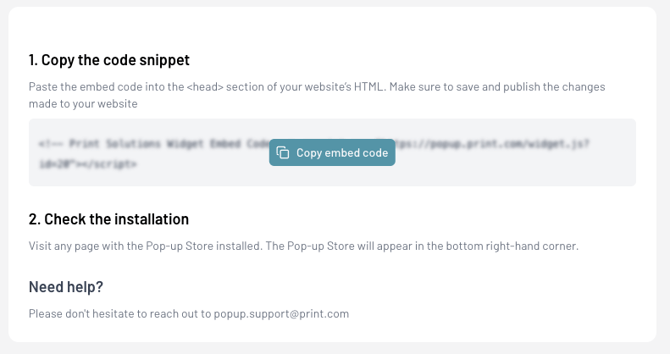
1\. A two-step process explaining how to add the Pop-up Store to your website using the code snippet
To add the Pop-up Store to your website, copy the embed code provided. Then log in to the CRM or back-end of your own website and paste the Pop-up Store code snippet into the header of your website. Make sure to publish your changes after saving them.
Check if everything works correctly by visiting your website. The Pop-up Store button should appear after loading the homepage. When you click the Pop-up Store button, the Pop-up Store should open and display the products you have added and published.
2\. A preview of your Pop-up Store
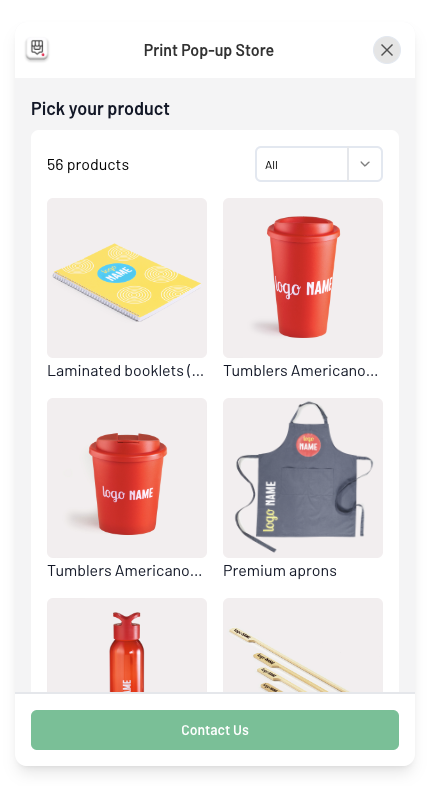
You will also see a preview of the Pop-up Store you created by adding products and setting your preferred styling. Use this preview to check whether all features and functionalities are working correctly and are ready to be published online.
- [Getting started](https://knowledge.print.com/helpcenter/getting-started?hsLang=en)
- [Products](https://knowledge.print.com/helpcenter/products?hsLang=en)
- [Ordering](https://knowledge.print.com/helpcenter/ordering?hsLang=en)
- [Payment](https://knowledge.print.com/helpcenter/payment?hsLang=en)
- [Upload files](https://knowledge.print.com/helpcenter/upload-files?hsLang=en)
- [Shipping & Delivery](https://knowledge.print.com/helpcenter/shipping-delivery?hsLang=en)
- [Sustainability](https://knowledge.print.com/helpcenter/sustainability?hsLang=en)
- [Solutions](https://knowledge.print.com/helpcenter/solutions?hsLang=en#main-content)
- [Pop-up Store](https://knowledge.print.com/helpcenter/solutions?hsLang=en#pop-up-store)
- [Print on Demand plugin, WooCommerce](https://knowledge.print.com/helpcenter/solutions?hsLang=en#print-on-demand-plugin-woocommerce)
- [Print on Demand, Shopify app](https://knowledge.print.com/helpcenter/solutions?hsLang=en#print-on-demand-shopify-app)
[](http://print.com?hsLang=en)
Copyright © 2025, Print.com