---
title: "Step 4: Add Print.com presets to WooCommerce products"
description: This article explains how to create a Print.com preset and then link it to a WooCommerce product.
---
[Skip to content](https://knowledge.print.com/helpcenter/en/stap-4.-print.com-presets-toevoegen-aan-woocommerce-producten#main-content)
- [English](https://knowledge.print.com/helpcenter/en/stap-4.-print.com-presets-toevoegen-aan-woocommerce-producten)
- [Deutsch](https://knowledge.print.com/de/helpcenter/stap-4.-print.com-presets-toevoegen-aan-woocommerce-producten)
- [Français - France](https://knowledge.print.com/fr-fr/helpcenter/stap-4.-print.com-presets-toevoegen-aan-woocommerce-producten)
- [Nederlands](https://knowledge.print.com/nl/helpcenter/nl/stap-4.-print.com-presets-toevoegen-aan-woocommerce-producten)
- [Nederlands - België](https://knowledge.print.com/helpcenter-nl-be/stap-4.-print.com-presets-toevoegen-aan-woocommerce-producten)
English
Show submenu for translations
[More support](https://knowledge.print.com/helpcenter/kb-tickets/new?hsLang=en)
[](https://knowledge.print.com/migration/nl/helpcenter?hsLang=en)
-
Open main navigation
Close main navigation
-
- - [English](https://knowledge.print.com/helpcenter/en/stap-4.-print.com-presets-toevoegen-aan-woocommerce-producten)
- [Deutsch](https://knowledge.print.com/de/helpcenter/stap-4.-print.com-presets-toevoegen-aan-woocommerce-producten)
- [Français - France](https://knowledge.print.com/fr-fr/helpcenter/stap-4.-print.com-presets-toevoegen-aan-woocommerce-producten)
- [Nederlands](https://knowledge.print.com/nl/helpcenter/nl/stap-4.-print.com-presets-toevoegen-aan-woocommerce-producten)
- [Nederlands - België](https://knowledge.print.com/helpcenter-nl-be/stap-4.-print.com-presets-toevoegen-aan-woocommerce-producten)
English
Show submenu for translations
- [More support](https://knowledge.print.com/helpcenter/kb-tickets/new)
- [Back to the webapp](https://app.print.com/)
[Back to the webapp](https://app.print.com/)
How can we help you?
- There are no suggestions because the search field is empty.
1. [Print.com Help Center](https://knowledge.print.com/helpcenter?hsLang=en)
2. [Solutions](https://knowledge.print.com/helpcenter/solutions?hsLang=en)
3. [Print on Demand plugin, WooCommerce](https://knowledge.print.com/helpcenter/solutions?hsLang=en#print-on-demand-plugin-woocommerce)
# Step 4: Add Print.com presets to WooCommerce products
## This article explains how to create a Print.com preset and then link it to a WooCommerce product.
Please note: WooCommerce is an external tool that we use. For questions about how WooCommerce itself works, we refer you to the official [WooCommerce documentation.](https://woocommerce.com/)
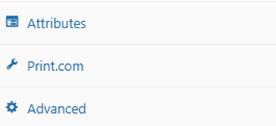
Go to*Products* in the menu on the left and click on the product to which you want to link a preset. Scroll down until you see several options on the left, including *Print.com*. Click on it.
****
Then follow the steps below:
**1. Print.com catalog**
In the Print.com web app, go to *Catalog*. Choose the desired category and select the product you want to use. Configure the product as needed.
After that, go to *My compositions* to give your composition a name and save it as a preset.
**2. Print.com SKU**
The SKU refers to the selected product from the catalog, for example a poster. Select the correct SKU that matches your product.
**3. Print.com preset**
Select the preset you created earlier.
**4. PDF**
Upload the final, print-ready design file that will be used for production.

- [Getting started](https://knowledge.print.com/helpcenter/getting-started?hsLang=en)
- [Products](https://knowledge.print.com/helpcenter/products?hsLang=en)
- [Ordering](https://knowledge.print.com/helpcenter/ordering?hsLang=en)
- [Payment](https://knowledge.print.com/helpcenter/payment?hsLang=en)
- [Upload files](https://knowledge.print.com/helpcenter/upload-files?hsLang=en)
- [Shipping & Delivery](https://knowledge.print.com/helpcenter/shipping-delivery?hsLang=en)
- [Sustainability](https://knowledge.print.com/helpcenter/sustainability?hsLang=en)
- [Solutions](https://knowledge.print.com/helpcenter/solutions?hsLang=en#main-content)
- [Pop-up Store](https://knowledge.print.com/helpcenter/solutions?hsLang=en#pop-up-store)
- [Print on Demand plugin, WooCommerce](https://knowledge.print.com/helpcenter/solutions?hsLang=en#print-on-demand-plugin-woocommerce)
- [Print on Demand, Shopify app](https://knowledge.print.com/helpcenter/solutions?hsLang=en#print-on-demand-shopify-app)
[](http://print.com?hsLang=en)
Copyright © 2025, Print.com